Start Playing on Linux
Normal Golf Game works well on Linux through Steam’s Proton compatibility layer, including on Steam Deck. That matters because its unusual swing system needs responsive controls: you physically guide the club instead of simply selecting a power meter.
The game is a Windows release built with DirectX 11, but Proton translates it for Linux systems. Steam Deck is listed as Verified, while Linux desktop players can generally launch it with Proton Experimental or Proton 11.
| Item | Linux result |
|---|---|
| Store platform | Steam |
| Native Linux version | No |
| Compatibility method | Proton |
| Graphics technology | DirectX 11 through DXVK |
| Storage space | About 1 GB |
| Steam Deck status | Verified |
| Controller support | Full support, including Steam Deck controls |
Before changing anything, install the game through Steam and try launching it normally. SteamOS should select Proton automatically. On a Linux desktop, make sure Steam Play is enabled if the Install button does not appear or the game will not launch.
The basic setup is light on system resources, so integrated graphics systems may be able to run it comfortably. The biggest performance setting to watch is grass density, especially when playing on lower-powered laptops or handheld hardware.
Configure Proton and Steam
For most players, Proton Experimental is the best first choice because it includes recent compatibility fixes. Proton 11 is a sensible fallback if Experimental causes an unexpected issue, such as an achievement not registering or a new update behaving differently.
| Setup step | What to do |
|---|---|
| 1 | Open Steam and find Normal Golf Game in your Library |
| 2 | Open the game’s Properties menu |
| 3 | Choose Compatibility |
| 4 | Enable “Force the use of a specific Steam Play compatibility tool” |
| 5 | Select Proton Experimental |
| 6 | Launch once and let Steam finish shader processing |
If the game starts, play through the early tutorial before adding launch options or custom controller layouts. This confirms that the core installation is working and avoids introducing a second variable while troubleshooting.
For players who already use MangoHud and GameMode, this optional Steam launch command can display performance information and prioritize game resources:
MANGOHUD_CONFIG=read_cfg,fps_limit=237 mangohud gamemoderun %command%
Do not use that command unless both MangoHud and GameMode are installed on your system. It is an optimization option, not a requirement for running the game.
A good first-session checklist is:
- Use Proton Experimental first.
- Wait for Steam’s initial shader work to finish.
- Keep Steam Input enabled for a controller.
- Test the tutorial with the default layout.
- Change only one setting at a time if something goes wrong.
Optimize Desktop and Steam Deck Performance
Normal Golf Game does not need aggressive tuning, but clean frame pacing helps with its precision-based shots. A clean strike depends on your club path, stance, club-face angle, and timing, so a stable display is more useful than chasing an extremely high frame rate.
| Device type | Recommended resolution | First setting to reduce |
|---|---|---|
| Desktop monitor | 1920×1080 | Grass density |
| Steam Deck | 1280×800 native | Grass density |
| Lower-end laptop | Native display resolution | Grass density, then resolution |
| Powerful desktop | 1080p or preferred native resolution | Usually no change needed |
On Steam Deck, begin at the native 1280×800 resolution and the standard controller layout. If performance drops while looking across dense parts of the course, reduce grass density in the game’s display settings before lowering resolution. That adjustment has a larger visual-performance payoff than most other changes.
Use the default Steam Deck controls long enough to learn the game’s intended feel. The golf motion is deliberately awkward at first: a small difference in club contact can turn a clean shot into a thin shot, a topped shot, or a ball that veers far from the target.
On desktop, a mouse and keyboard setup can be effective because you drag your hands and club through the swing. Controllers also work well, particularly if you prefer analog movement while exploring the open course. Steam Input can translate Xbox, PlayStation, and Steam Deck inputs without a separate remapping tool.
| Performance goal | Best adjustment |
|---|---|
| More stable frame rate | Lower grass density |
| Better handheld clarity | Stay at 1280×800 before reducing resolution |
| Less heat or battery use | Set a sensible Steam Deck frame-rate cap |
| Better shot feedback | Avoid inconsistent frame pacing |
| Fewer input surprises | Use the default layout before customizing |
Learn the Swing Instead of Fighting It
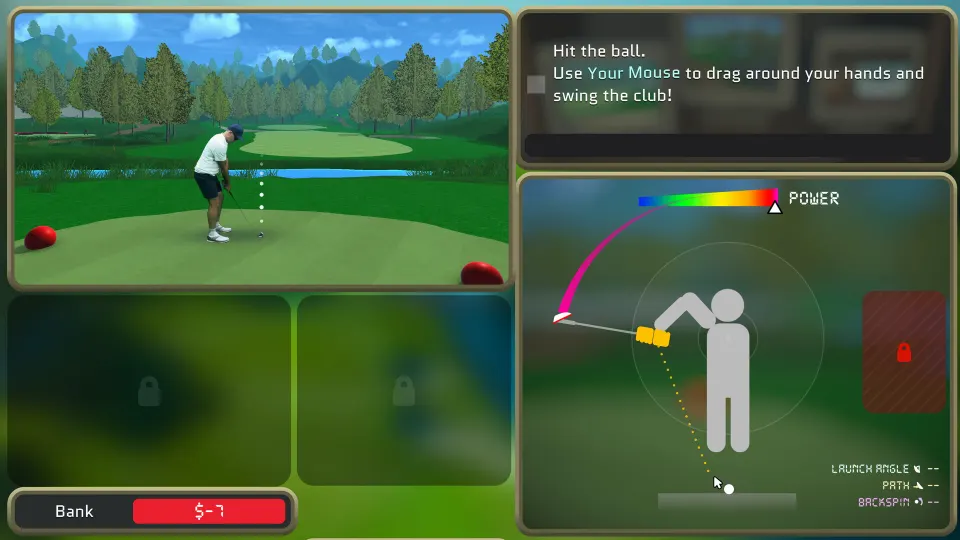
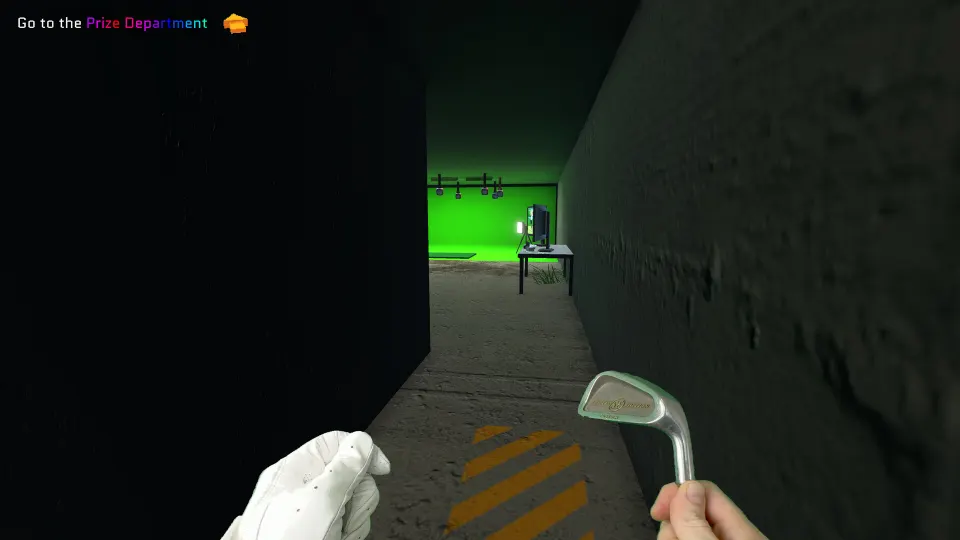
The game begins with an iron and teaches you its strange but satisfying physical swing model. You can hit the ball from unusual locations and use the entire course as a playground, but progress comes from learning why each shot behaved the way it did.
Move into golf mode, position your hands and club with the mouse or controller, then swing through the ball. Clean contact comes from striking the middle of the club face. Swinging back first creates momentum, but more power also makes mistakes more dramatic.
The early tutorial teaches aiming, contact, shot shape, stance, wind, bunkers, and environmental targets. Use quick ball resets when practicing. They let you repeat a shot immediately instead of walking after every poor attempt.
| Shot or tool | How it behaves | When it helps |
|---|---|---|
| Straight shot | Minimal curve with square contact | Simple approaches |
| Slice | Curves strongly right for a right-handed swing | Avoiding obstacles on the left |
| Hook | Curves strongly left | Avoiding obstacles on the right |
| Draw | Starts outward, then curves back | Controlled curved routes |
| Fade | Curves opposite a draw | Safer shaped approaches |
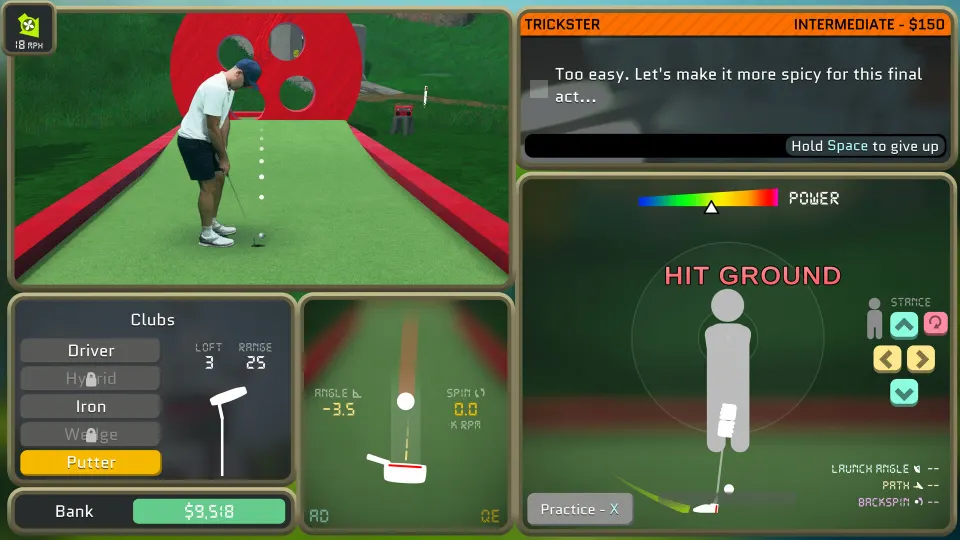
| Putter | Gentle, precise roll | Short-range shots and greens |
| Driver | Maximum distance, less forgiving | Long open shots |
| Wedge | High, shorter flight | Bunkers and controlled landings |
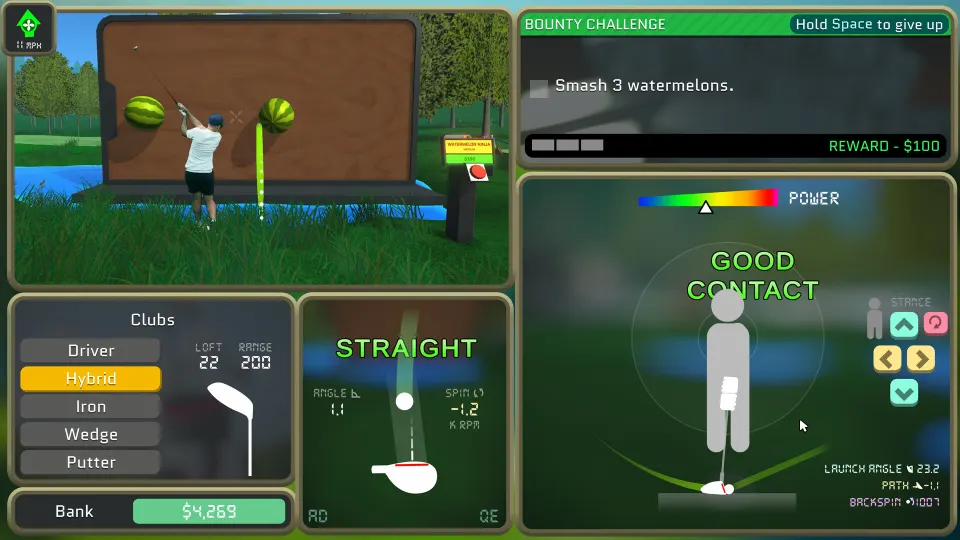
| Hybrid | Middle ground between iron and driver | Flexible distance shots |
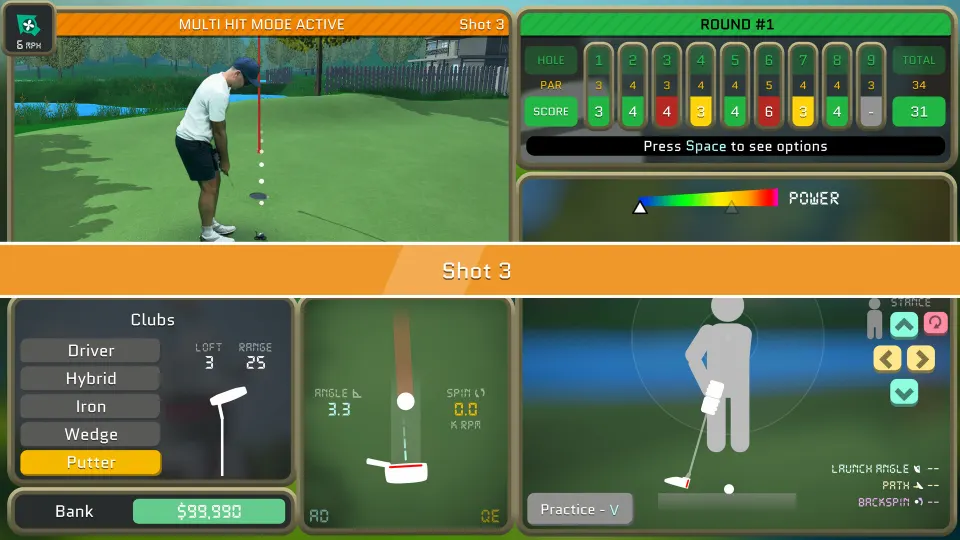
Use A and D to alter club-face direction, Q and E to influence ball curve, and Z and C for aim adjustments. The exact result depends on your stance, swing path, and where the face meets the ball, so treat the tutorial as a practice range rather than a test to rush through.
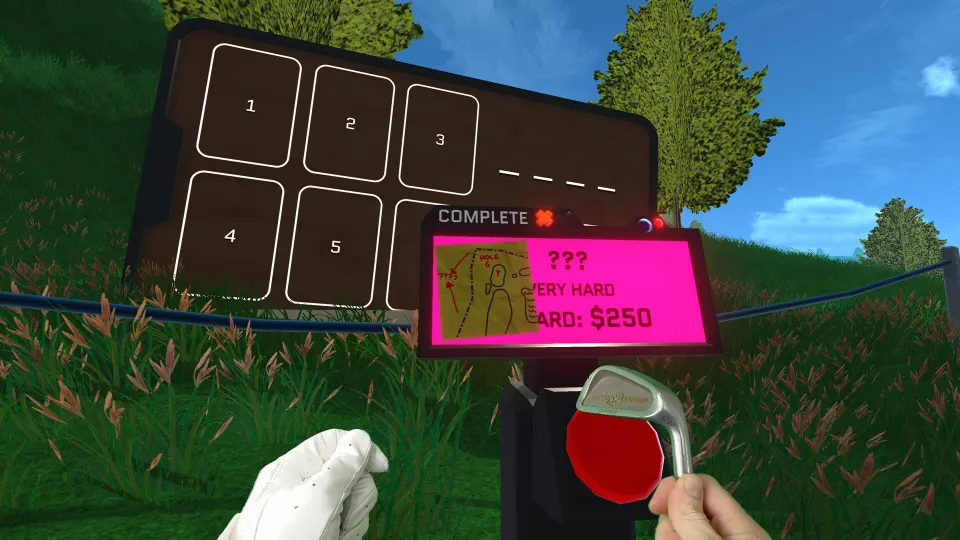
Challenges reward money that unlocks additional clubs. The putter improves short-game control, the driver adds distance, the wedge helps with higher shots and bunker escapes, and the hybrid offers a more balanced option. Later, the Ultimate Golf Challenge asks you to complete the full course with a limited number of swings, making those earlier lessons matter.
FAQ
How to play normal golf game on linux?
Install it through Steam, open Properties, force Proton Experimental or Proton 11 under Compatibility, then launch the game. Steam Deck players can normally use the default Proton configuration and standard controls.
Does Normal Golf Game have a native Linux version?
No. It is a Windows game, but it runs through Proton on Linux and SteamOS.
What Proton version should I use?
Start with Proton Experimental. If you experience a problem, try Proton 11 and test again before changing additional settings.
Why is the game running slowly on my Linux PC or Steam Deck?
Lower grass density in the in-game display settings first. On Steam Deck, keep the game at its native 1280×800 resolution unless you still need more performance.
Can I use a controller on Linux?
Yes. The game supports controllers, and Steam Input handles Steam Deck, Xbox, and PlayStation-style controllers.